> For the complete documentation index, see [llms.txt](https://play.robobattles.com/llms.txt). Markdown versions of documentation pages are available by appending `.md` to page URLs; this page is available as [Markdown](https://play.robobattles.com/tutorial/controls/first-time-setup.md).
# First-Time Setup
**\[Zoe Foxlin]** You only need to do these steps once!
{% stepper %}
{% step %}
### Install Hub Firmware
1. Visit [code.robobattles.com](https://code.robobattles.com/)
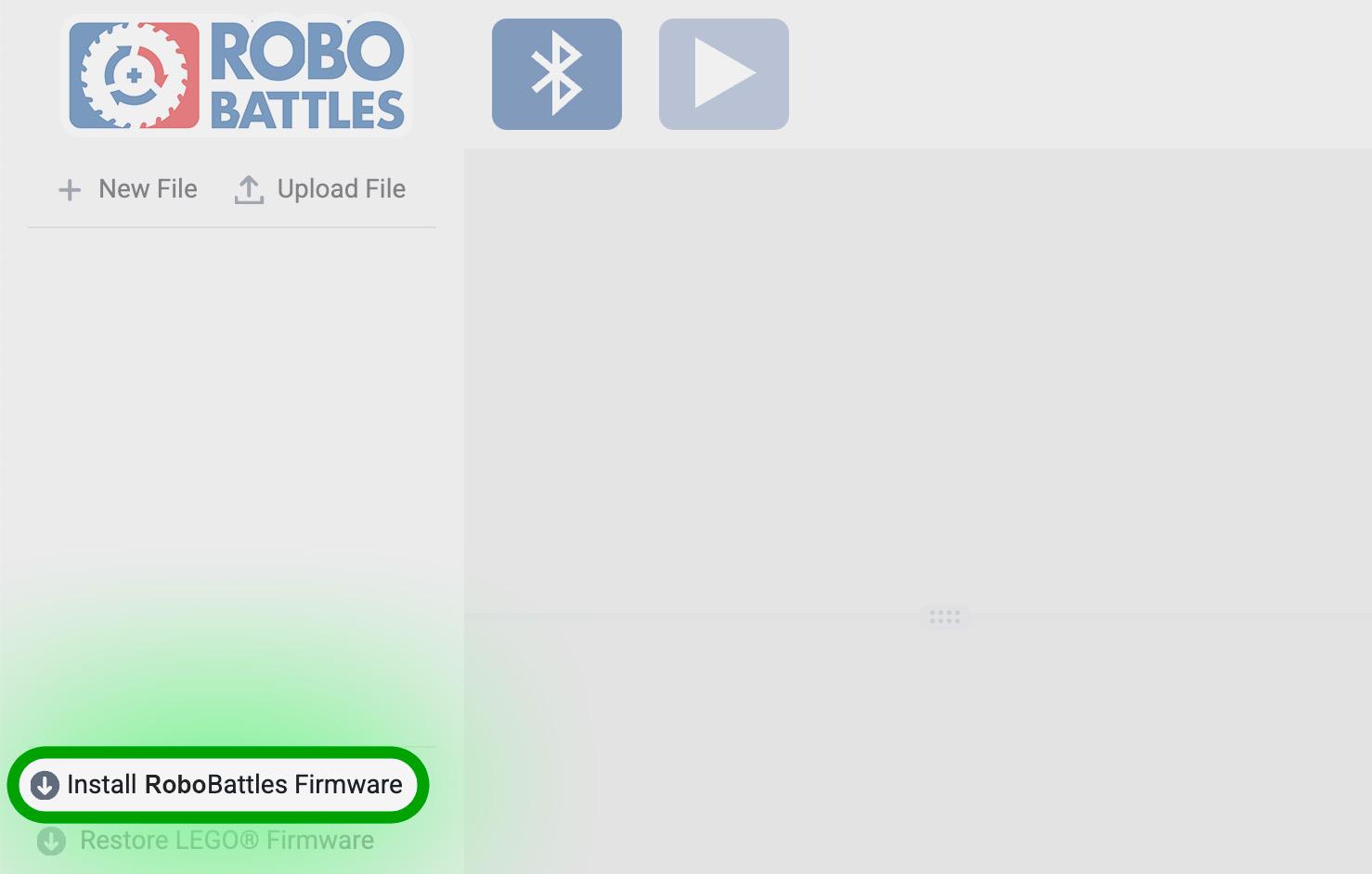
2. Click **Install RoboBattles Firmware***.* Follow the instructions on screen.
Your hub is now running the RoboBattles firmware!
{% endstep %}
{% step %}
### Pair Your Controller With Hub
1. Ensure your hub is on. Its light should be pulsing white.
2. Press and hold your hub's power button until the light starts pulsing quickly.
3. Turn on your controller by pressing and holding the Xbox button until it lights up. Release the button.
{% hint style="warning" %}
If your computer asks to pair to your controller, deny the request. The controller never needs to be connected to your computer.
{% endhint %}
3. Press and hold the pair button until the controller light starts blinking fast. Release the button.
4. After a few seconds, both the hub light and controller light should stop flashing.
Your hub and controller are now paired. They will automatically connect to each other next time they are turned on.
Troubleshooting
### The controller won't turn on.
Make sure it has fresh batteries and that they're facing the correct direction.
### The controller won't pair.
Turn your hub and controller off. Ensure there are no other hubs or controllers turned on in your space. Repeat the pairing steps.
If it still won't pair, reinstall the hub firmware and try again.
If it still won't pair, your controller may have shipped with outdated software. Follow [Microsoft's instructions for updating your controller software](https://support.xbox.com/en-US/help/hardware-network/controller/update-xbox-wireless-controller). Then repeat the steps above.
{% endstep %}
{% endstepper %}
---
# Agent Instructions
This documentation is published with GitBook. GitBook is the documentation platform designed so that both humans and AI agents can read, navigate, and reason over technical content effectively. Learn more at gitbook.com.
## Querying This Documentation
If you need additional information that is not directly available in this page, you can query the documentation dynamically by asking a question.
Perform an HTTP GET request on the current page URL with the `ask` query parameter, and the optional `goal` query parameter:
```
GET https://play.robobattles.com/tutorial/controls/first-time-setup.md?ask=&goal=
```
`ask` is the immediate question: it should be specific, self-contained, and written in natural language.
`goal` is optional and describes the broader end goal you are ultimately trying to accomplish on behalf of the user. GitBook uses it to tailor the answer towards what is most useful for that goal.
The response will contain a direct answer to the question and relevant excerpts and sources from the documentation.
Use this mechanism when the answer is not explicitly present in the current page, you need clarification or additional context, or you want to retrieve related documentation sections.

 until it lights up. Release the button.
{% hint style="warning" %}
If your computer asks to pair to your controller, deny the request. The controller never needs to be connected to your computer.
{% endhint %}
3. Press and hold the pair button until the controller light starts blinking fast. Release the button.
until it lights up. Release the button.
{% hint style="warning" %}
If your computer asks to pair to your controller, deny the request. The controller never needs to be connected to your computer.
{% endhint %}
3. Press and hold the pair button until the controller light starts blinking fast. Release the button.
