All pages
Powered by GitBook
1 of 1

Loading...

Custom Controls

[Zoe Foxlin] A program tells your hub and motors how to respond to button presses. You can create your own custom program to control your bot any way you like!

1

Create a program file

  1. Visit code.robobattles.com using Chrome or Edge.

  2. Click the ➕ New File button.

  1. If this is your first time, copy my premade control program ↓.

Zoe's Universal Robot Controls

Hover over the code below, click the Copy button, and paste it into your empty file.

# Set up controller
controller = XboxController()

# Set up motors
left = Motor(Port.A)
right = Motor(Port.B)
weapon = Motor(Port.C)

# Run program loop
while True:
    # Get input
    compX = controller.joystick_left()[0]
    compY = controller.joystick_left()[1]
    compWL = controller.triggers()[0]
    compWR = controller.triggers()[1]

    # Accept D-Pad for drive motor control to support adaptive controllers
    if Button.LEFT in controller.buttons.pressed():
        compX -= 100

    if Button.RIGHT in controller.buttons.pressed():
        compX += 100

    if Button.UP in controller.buttons.pressed():
        compY += 100

    if Button.DOWN in controller.buttons.pressed():
        compY += 100

    # Accept buttons for weapon motor control to support adaptive controller
    if Button.B in controller.buttons.pressed():
        compWR += 100
        
    if Button.A in controller.buttons.pressed():
        compWL += 100

    # Reduce left/right input for slower turning to make bot easier to control
    compX /= 3

    # Control weapon motors
    if compWL - compWR != 0:
        weapon.go(compWL - compWR)
    else:
        # Triggers are not pressed, so let weapon motor spin freely
        weapon.stop()

    # Control wheel motors
    if compX != 0 or compY != 0:
        # Joystick is pressed, so move wheel motors
        left.go(-compY - compX)
        right.go(compY - compX)
    else:
        # Joystick is not pressed, so let wheel motors spin freely
        left.stop()
        right.stop()
2

Connect your hub to your computer

  1. Turn on your hub.

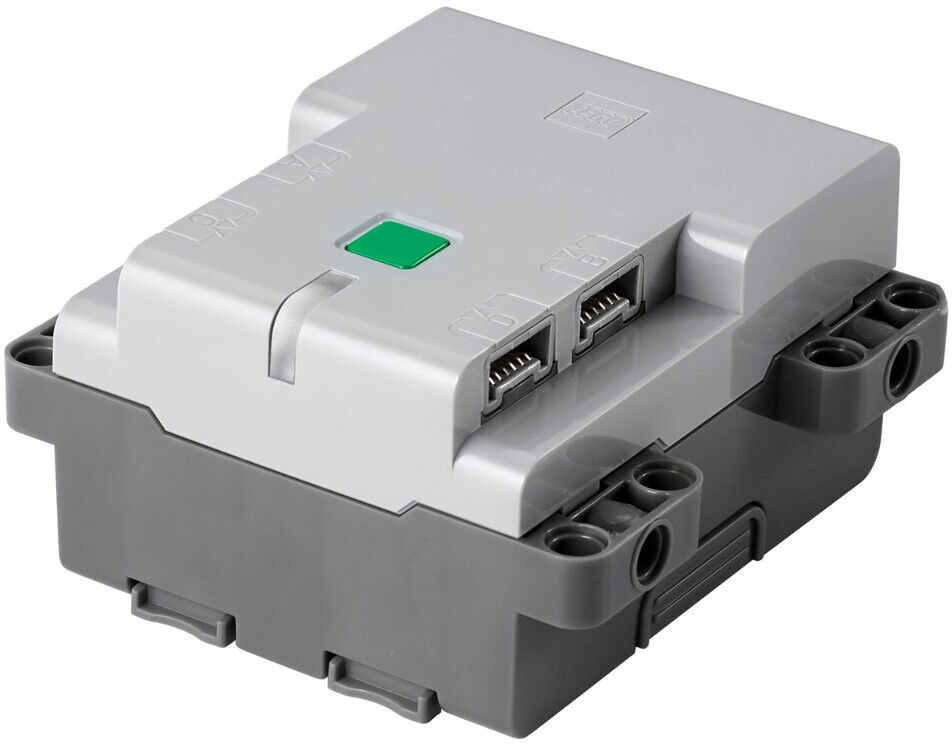
  2. Double tap the green button. The light should start flashing blue.

  3. Click the Bluetooth button.

  1. Click the name of your hub, then click Pair.

When the hub is connected, the light will stop flashing and turn solid blue. The Bluetooth button icon will also change.

Troubleshooting

Make sure you've installed all 6 AA batteries. The battery holder pops out and stores 2 rows of 3 batteries each. Make sure your batteries are fully charged and facing the right directions.

  • Make sure your hub is in Bluetooth mode. The light should be flashing blue.

  1. Turn on your hub.

  2. Double tap the power button. The hub light should start flashing blue.

  3. Click the Bluetooth button.

  1. Click the name of your hub, then click Pair.

When the hub is connected, the light will stop blinking and turn solid blue. The Bluetooth button icon will also change.

3

Transfer the program to your hub

  1. Press the Play button.

The play button will turn into a loading wheel to show progress. If it gets stuck: refresh the page, reconnect bluetooth, and try again.

You only need to transfer a program to your hub once. Your hub will remember it.

Troubleshooting

The play button is grayed out

Make sure your hub is connected to your computer.

If the light is off, your hub is off. Press the green button to turn it on.
  • If the light is slowly pulsing, your hub is running code. Double tap the green button until the light starts flashing instead.

  • Make sure you've installed the latest RoboBattles firmware.

  • If it's still not showing up, reinstall the RoboBattles firmware and start over.

    Troubleshooting

    The hub won't turn on

    Make sure the battery is charged.

    The hub isn't showing up in the list

    • Make sure your hub is in Bluetooth mode. The light should be flashing blue.

    • Make sure you've installed the latest RoboBattles firmware.

    If it's still not showing up, reinstall the RoboBattles firmware and start over.

    The hub won't light up

    The hub isn't showing up in the list